Download the extension
Live bookie-vs-Betfair EV, your AI predictions and our daily tips — on every race, in one panel. Installs in about two minutes.
What you need
- • A free Punt Legacy account (log in in the same Chrome). The tool is free to start; the AI column needs an AI plan and the Tips column needs a Tips plan — everything else is free.
- • A Betfair account (betfair.com.au) — it provides the “true price” that powers the EV.
- • Google Chrome on desktop.
📥 Installation Guide
Follow these 7 steps in order. It takes about two minutes — no tech skills needed.
Click the big Download button at the top of this page. You’ll get a file called punt-legacy-edge.zip in your Downloads folder.
Open your Downloads folder and unzip that file:• Mac — double-click punt-legacy-edge.zip.• Windows — right-click it → Extract All → Extract.This gives you a folder called punt-legacy-edge.
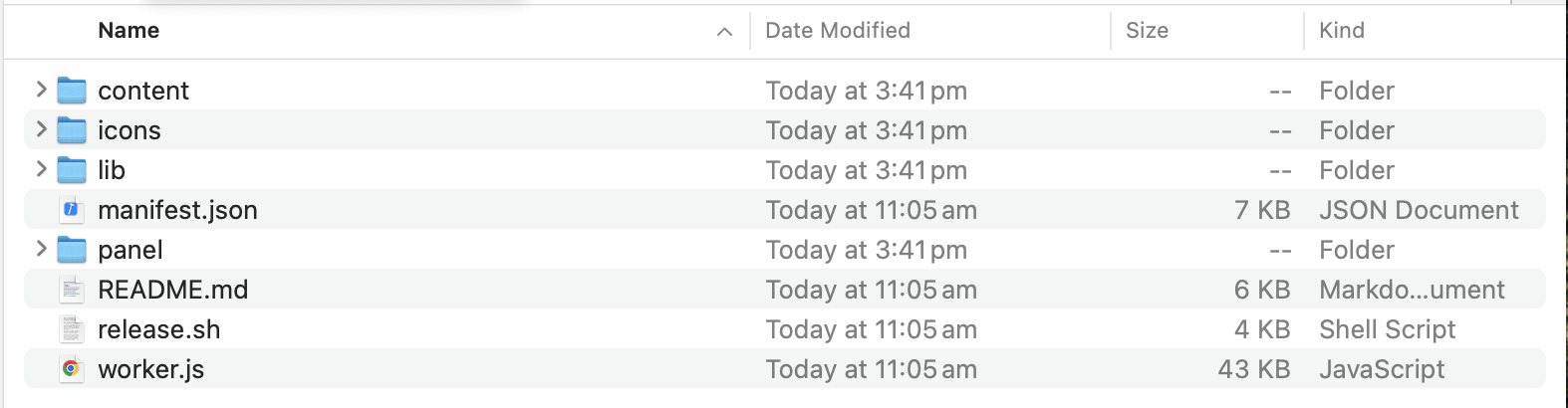
Drag the whole punt-legacy-edge folder onto your Desktop, so it doesn’t get lost. Leave the name as-is and keep it there — you’ll come back to this same folder every time you update.Open the folder to check it looks like the picture below — a manifest.json file plus content, icons, lib and panel folders. If instead you see a single punt-legacy-edge folder inside, that inner one is the real folder — drag it to the Desktop.
In Google Chrome, click the address bar, type chrome://extensions and press Enter. Then turn on Developer mode using the switch in the top-right corner.
Click Load unpacked (top-left) → choose the punt-legacy-edge folder on your Desktop → click Select. Punt Legacy Edge now appears in your list of extensions.If Chrome says “Manifest file is missing”, you picked the wrong folder — go one level in and select the folder that has manifest.json directly inside it.
Click the puzzle-piece icon near the top-right of Chrome (see below), find Punt Legacy Edge in the list, and click the pin icon next to it so it stays visible.

Click the Punt Legacy Edge icon to open it. In the same Chrome, log into puntlegacy.com and betfair.com.au — the setup strip at the top of the panel tracks both. Pick a race and the edge lights up. That’s it 🎉

🔄 Updating to a new version later▾
When we post a new version, updating takes 20 seconds:
- Click Download again and unzip it (same as steps 1–2 above).
- On your Desktop, delete the old
punt-legacy-edgefolder and drop the new one in its place — same name, same spot on the Desktop. - Go to
chrome://extensionsand click the ↻ refresh arrow on the Punt Legacy Edge card (shown below).
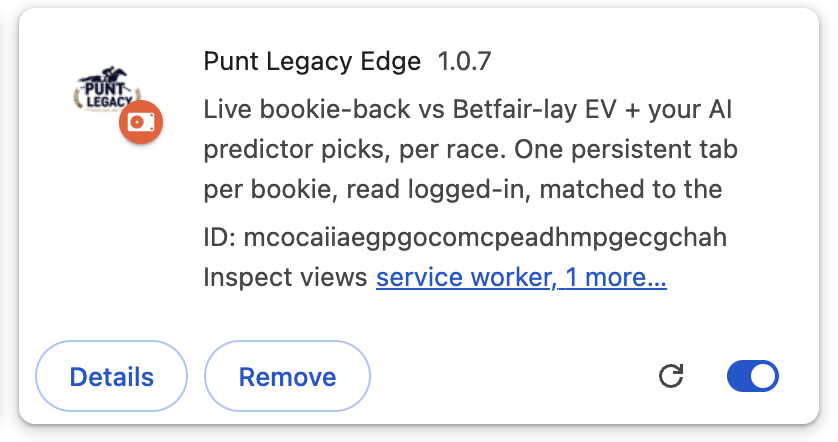
Your settings and pin are kept. We post new versions in the Punt Legacy Discord.
❓ Something not working?▾
“Manifest file is missing or unreadable” — you selected the wrong folder in step 5. Pick the folder that has manifest.json directly inside it (sometimes it’s one folder deeper than you expect).
The AI or Tips column is empty — the AI column needs an AI plan and the Tips column needs a Tips plan. Make sure you’re logged into puntlegacy.com in the same Chrome.
Prices aren’t showing — log into betfair.com.au in the same Chrome; Betfair provides the “true price” that powers the EV.
Still stuck? Drop a message in the Punt Legacy Discord — we’ll sort it fast.
New to how it works? Read the full explainer →
An information tool only — no profit is guaranteed and bookmakers may restrict or close accounts. Use at your own risk. 18+. Gamble responsibly.